Check your staff appointments: five desktop steps
By LUXNOUS · Magyar · Deutsch · Español
Workflow 9: check your appointment schedule before carrying out the service. Use the owner and staff login with the staff account supplied by your salon, linked to your active staff profile. The example has read-booking access; changing appointments requires separate permissions.
Actual English-language product screenshots captured on 10 November 2026 in an isolated training environment. Mina Demo, Demo Customer and LUXNOUS Demo Studio are fictional. The sample is a confirmed Classic manicure on 10 November at 10:00 salon local time, lasting 45 minutes. This is a dated walkthrough, not a live schedule. No appointment was moved, cancelled or checked out, and no completed work was recorded. Translations were prepared with AI assistance.
1. Open Bookings
Choose Bookings in the sidebar. Check the current week’s date, start time, customer, service, staff member and status. The example contains one confirmed appointment for Mina.
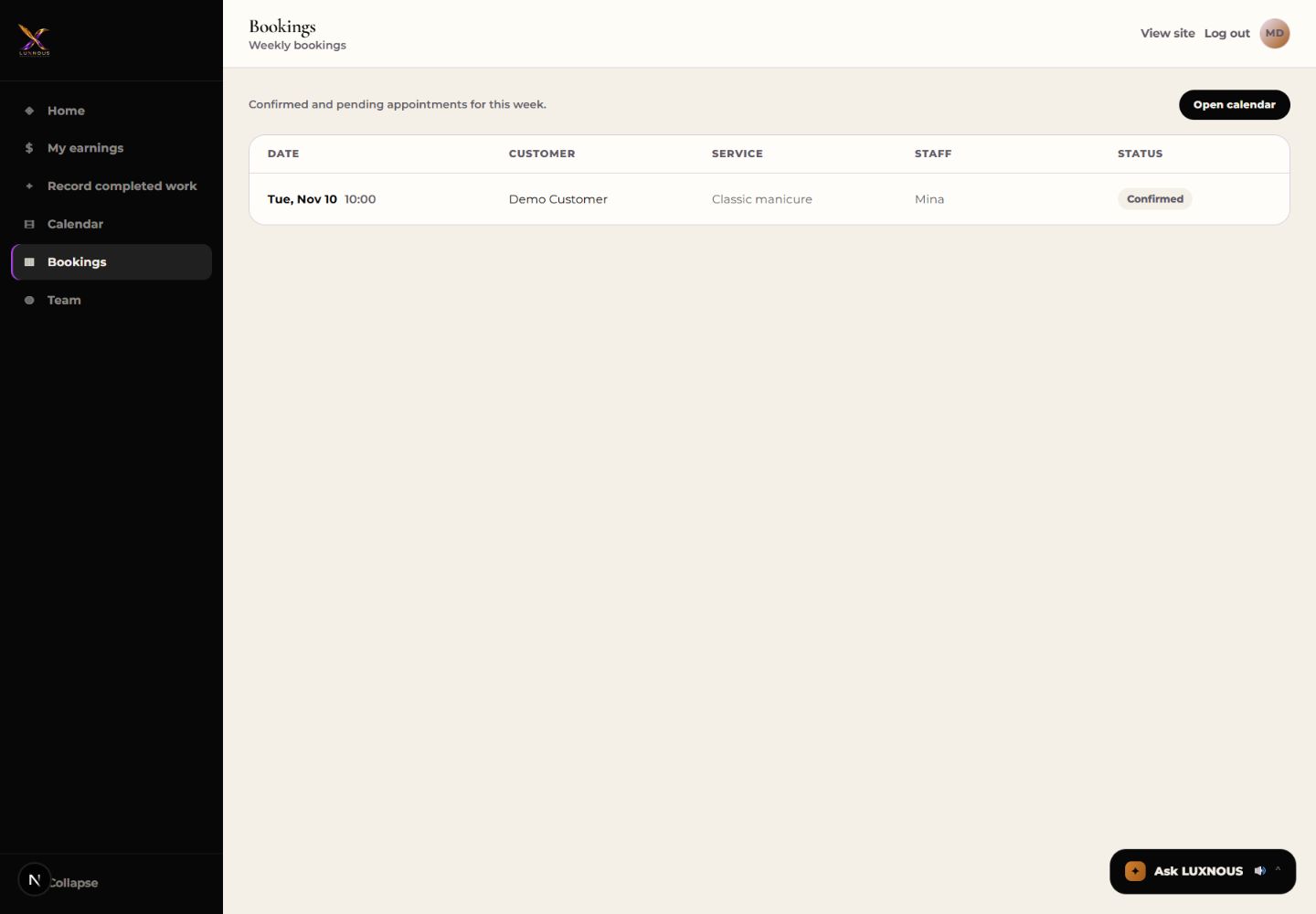
2. Open the Day calendar
Select Open calendar and use Day. Check the date above the grid; use the arrows or Today to choose the required day. The example shows Tuesday, 10 November, and the 10:00 appointment.
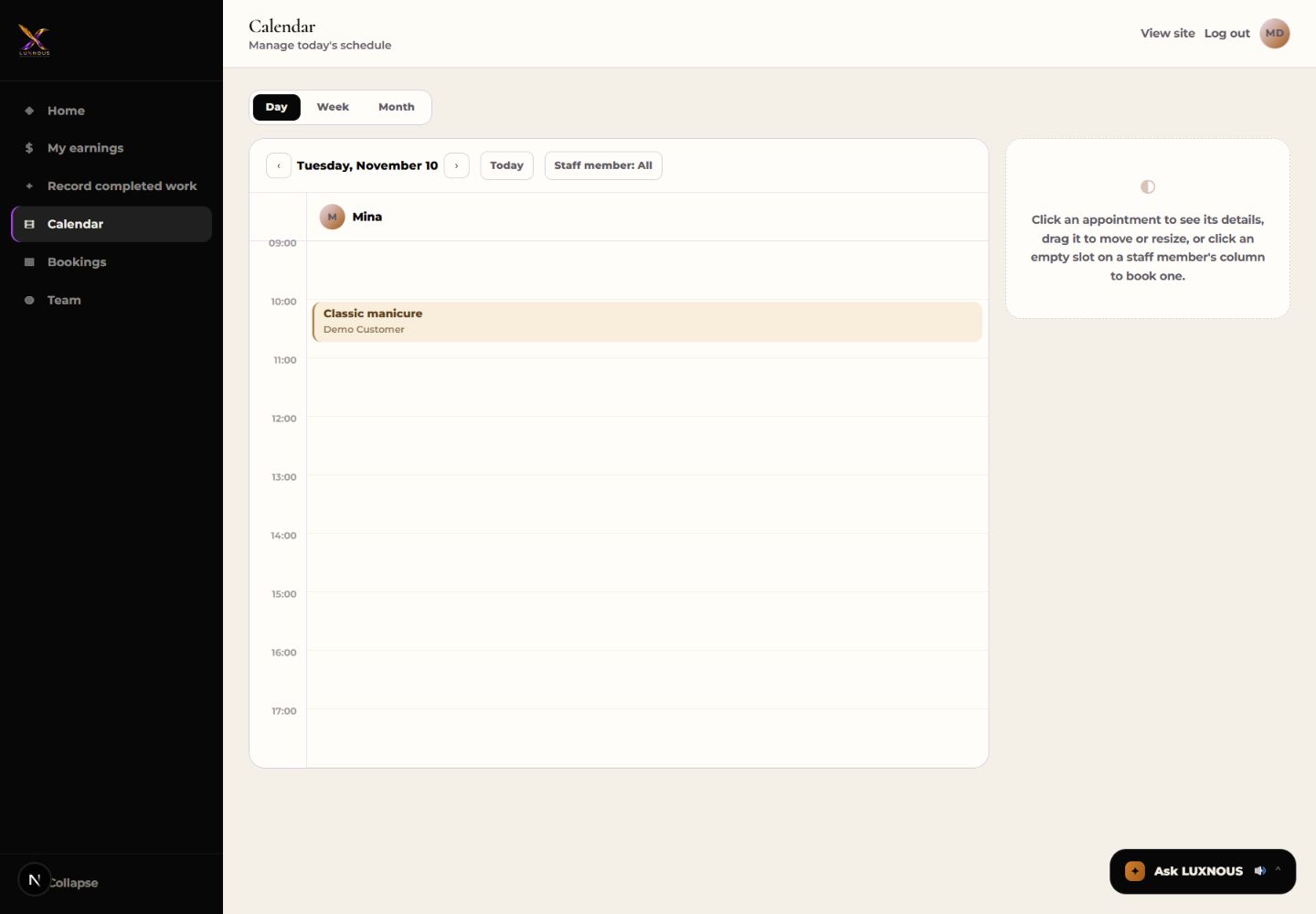
3. Read the appointment details
Select the appointment block. Check the service, time, professional, customer, notes and status in the details panel. This walkthrough only reads the details; do not use Check out, No-show, Reschedule or Cancel.
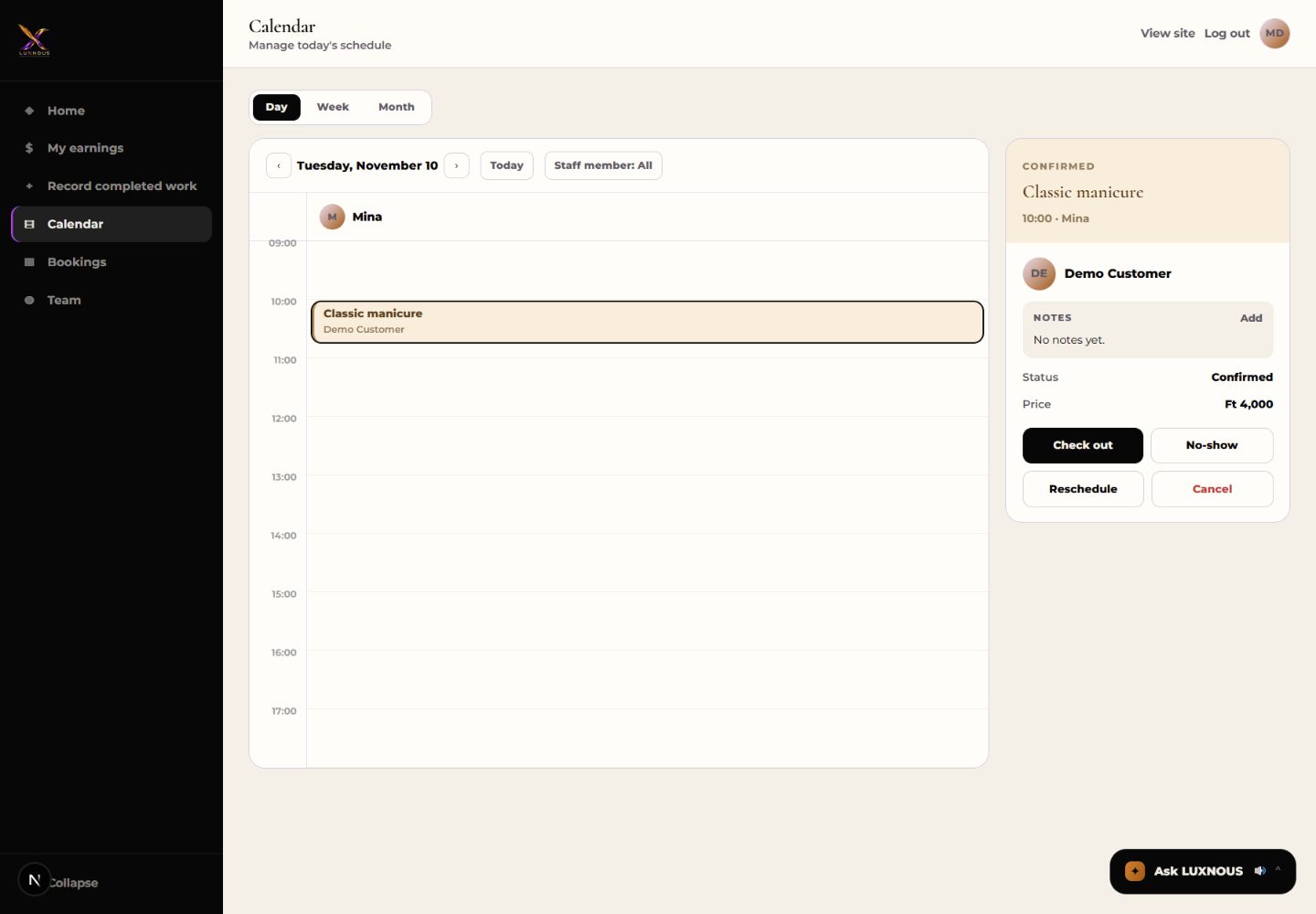
4. Review the week
Select Week for an overview. The example uses All staff and shows one appointment on Tuesday. A day heading or count opens that date in Day view. Visible staff and appointments depend on your access.
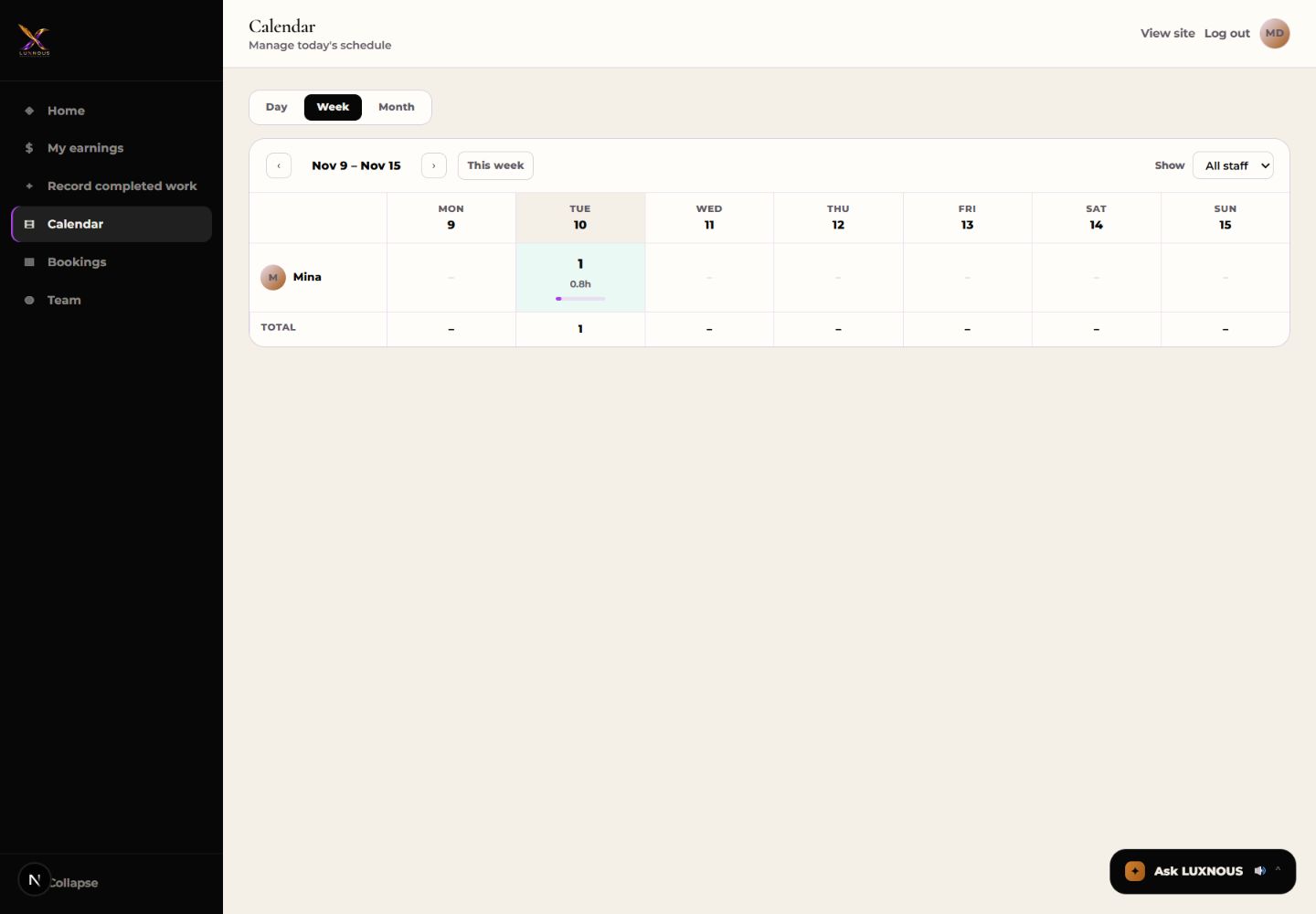
5. Review the month and return to a day
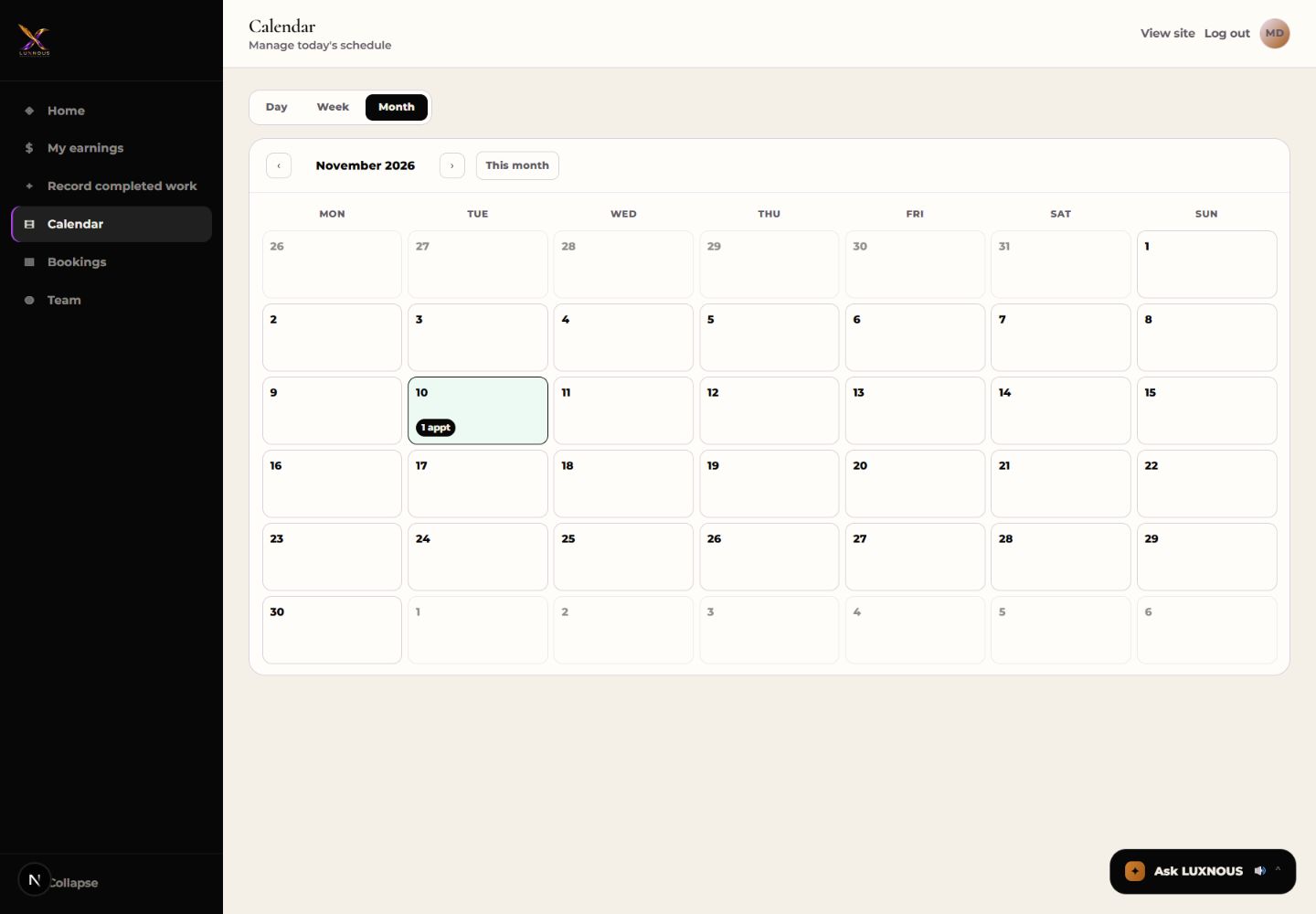
Select Month to see appointment counts by day. Use the month arrows or This month. Select a day to open its Day view; the example returns from 10 November to the same unchanged appointment.
Common questions for staff
Which account should staff use?
Use the owner and staff login with the credentials supplied by your salon. Customer sign-in is a separate account. Ask the owner to confirm that your active login is linked to the correct active staff profile.
Why can I only see my own appointments?
Staff normally receive appointments assigned to their own linked profile. Viewing other staff calendars requires a separate permission from the owner. If names or reference data are missing, ask the owner to check your profile link and booking-read access.
Does seeing a calendar let me change appointments?
No. Viewing and changing appointments are separate permissions. Controls may be visible, but the service still checks authorization. Ask the owner before moving, cancelling or finalizing a booking. Week and Month are overview and navigation views.
Does opening an appointment record completed work?
No. Opening details or changing views does not complete a service, check out an appointment or create an earnings record. Complete the real service first, then use the separately authorized checkout or completed-work flow as appropriate.
Which dates and times should I use?
Read appointments in the salon’s local date and time. Bookings lists the current week; use Calendar for another day, week or month. If the date or business timezone seems wrong, ask the owner to check the setup.