LUXNOUS in practice: ten workflows and a customer booking guide
By LUXNOUS · Magyar · Deutsch · Español
Ten workflows at a glance
| Role | Workflow | What happens |
|---|---|---|
| Owner | 1 | Set up services, prices, staff and working hours. |
| Owner | 2 | Manage appointments in the calendar. |
| Owner | 3 | Approve completed work and record staff payments. |
| Owner | 4 | Review and publish a reply to a connected Google review. |
| Owner | 5 | Prepare a customer campaign; marketing consent is required. |
| Owner | 6 | Create a reel, review it and download the finished video. |
| Customer | 7 | Find a salon and book an available appointment. |
| Customer | 8 | Leave an internal review for a professional. |
| Staff | 9 | Check the schedule and carry out the service. |
| Staff | 10 | Record completed work and track approvals and earnings. |
Features depend on the salon’s plan and staff permissions. These are separate workflows, not an automatic sequence. Internal staff reviews and Google reviews are separate. Recording a staff payment does not transfer money; downloading a reel does not publish it.
Customer booking: six desktop steps
Actual English-language product screenshots captured on 9 November 2026 in an isolated training environment. All names, prices and appointments are fictional. The example shows Classic manicure with Mina: 45 minutes, HUF 4,000, 10 November 2026 at 10:00, salon local time. This is a static walkthrough, not live availability. Sign in to your customer account before starting. Translations were prepared with AI assistance.
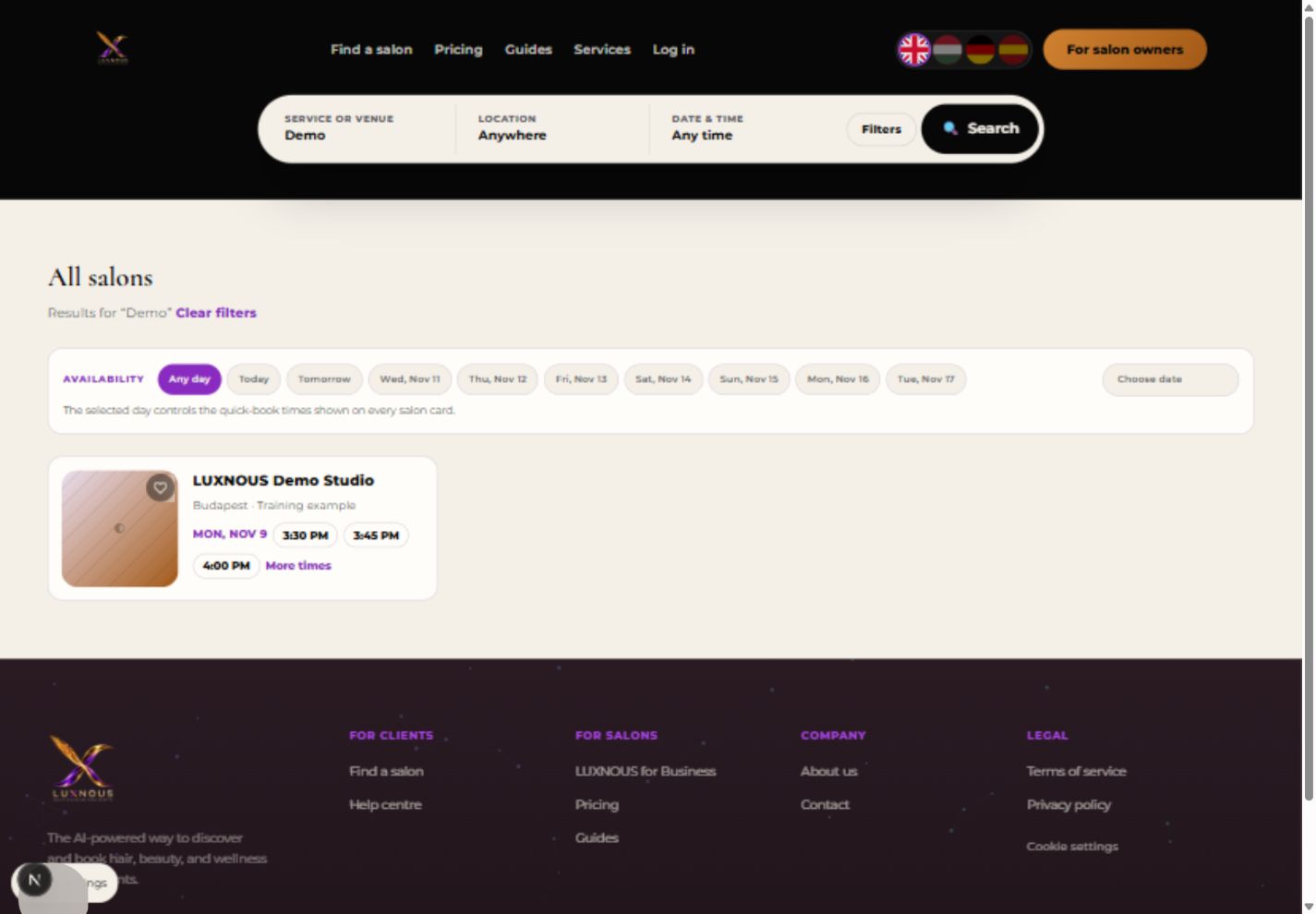
1. Find the salon
Search by salon name or city and open the salon. The example searches for Demo.
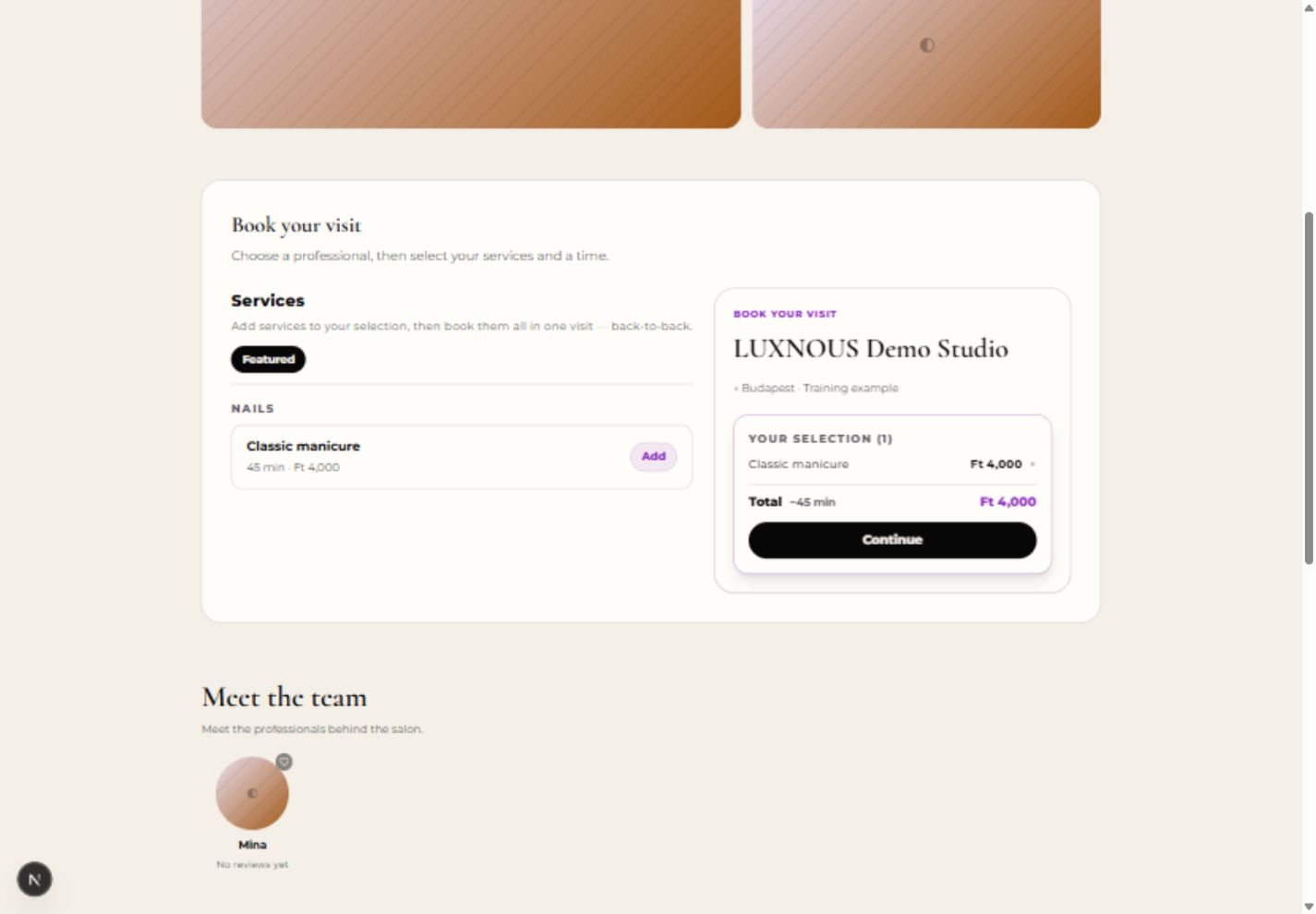
2. Add a service
Choose the service and select Add, then Continue. Check its duration and price.
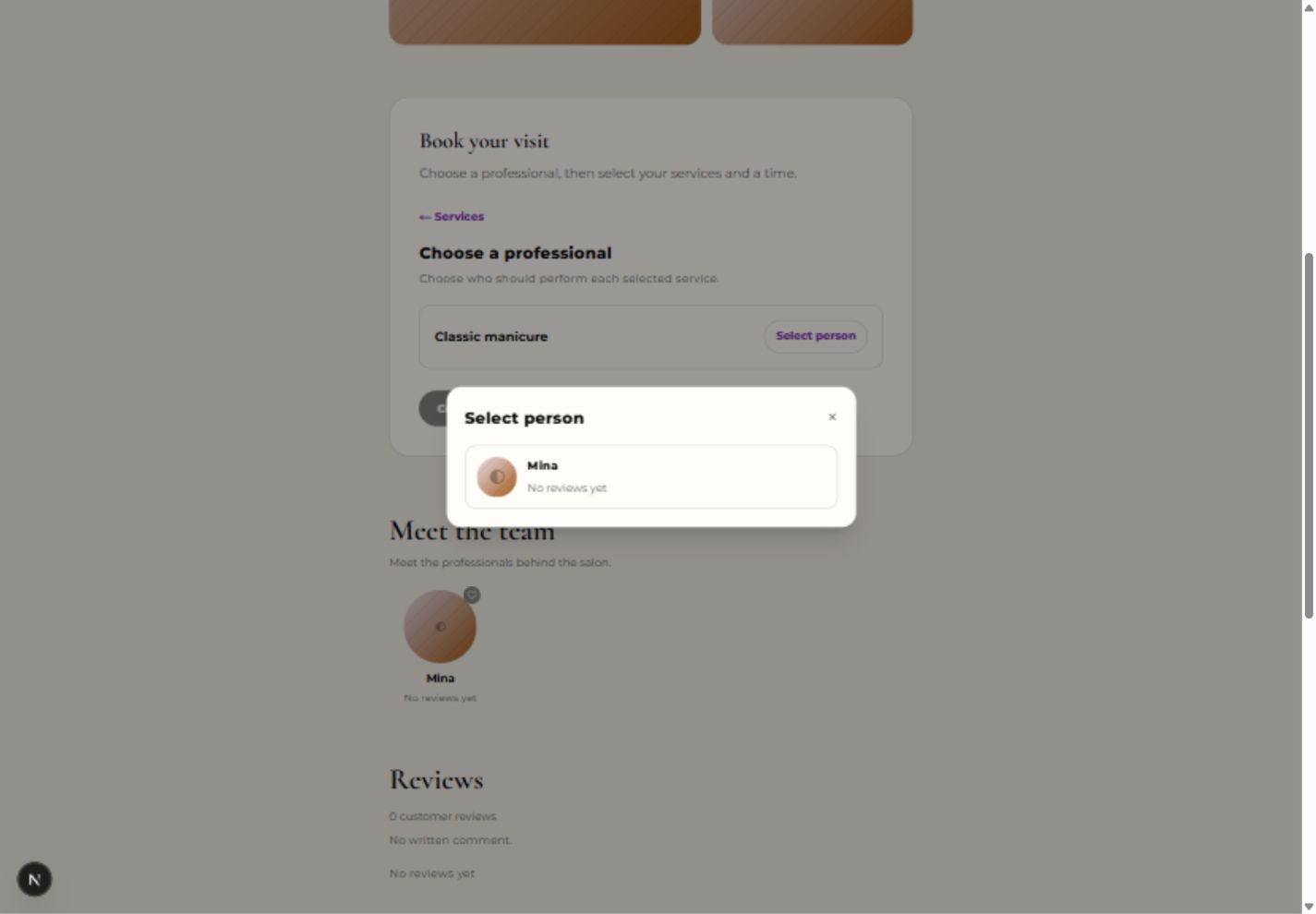
3. Choose a professional
Select an available professional for the service, then Continue. The example uses Mina.
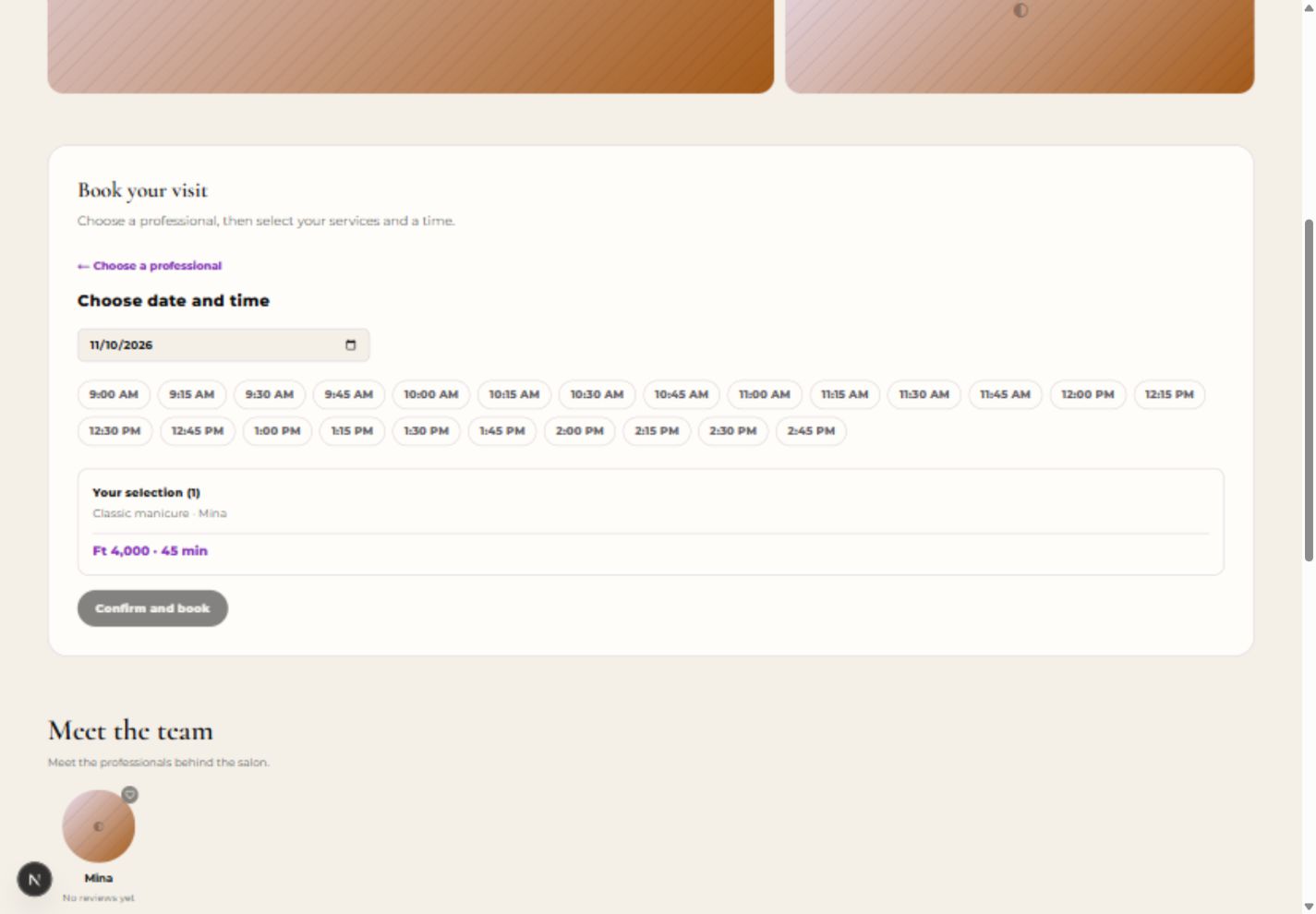
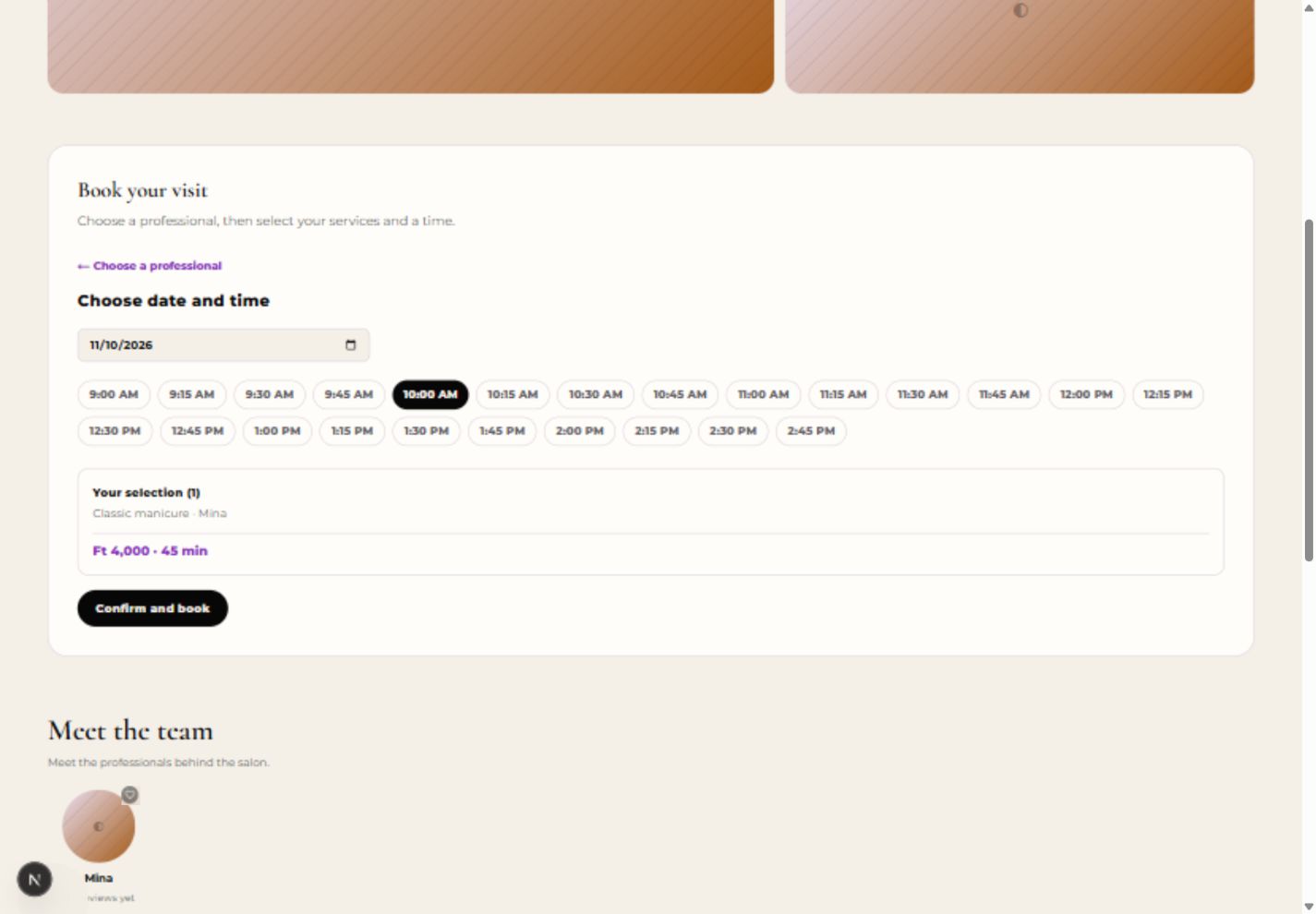
4. Choose a date and time
Pick a date, wait for available slots and select a time. The example uses 10:00.
5. Review and confirm
Check the salon, service, professional, date, time and total. Select Confirm and book. Payment is at the salon; no service payment is taken here.
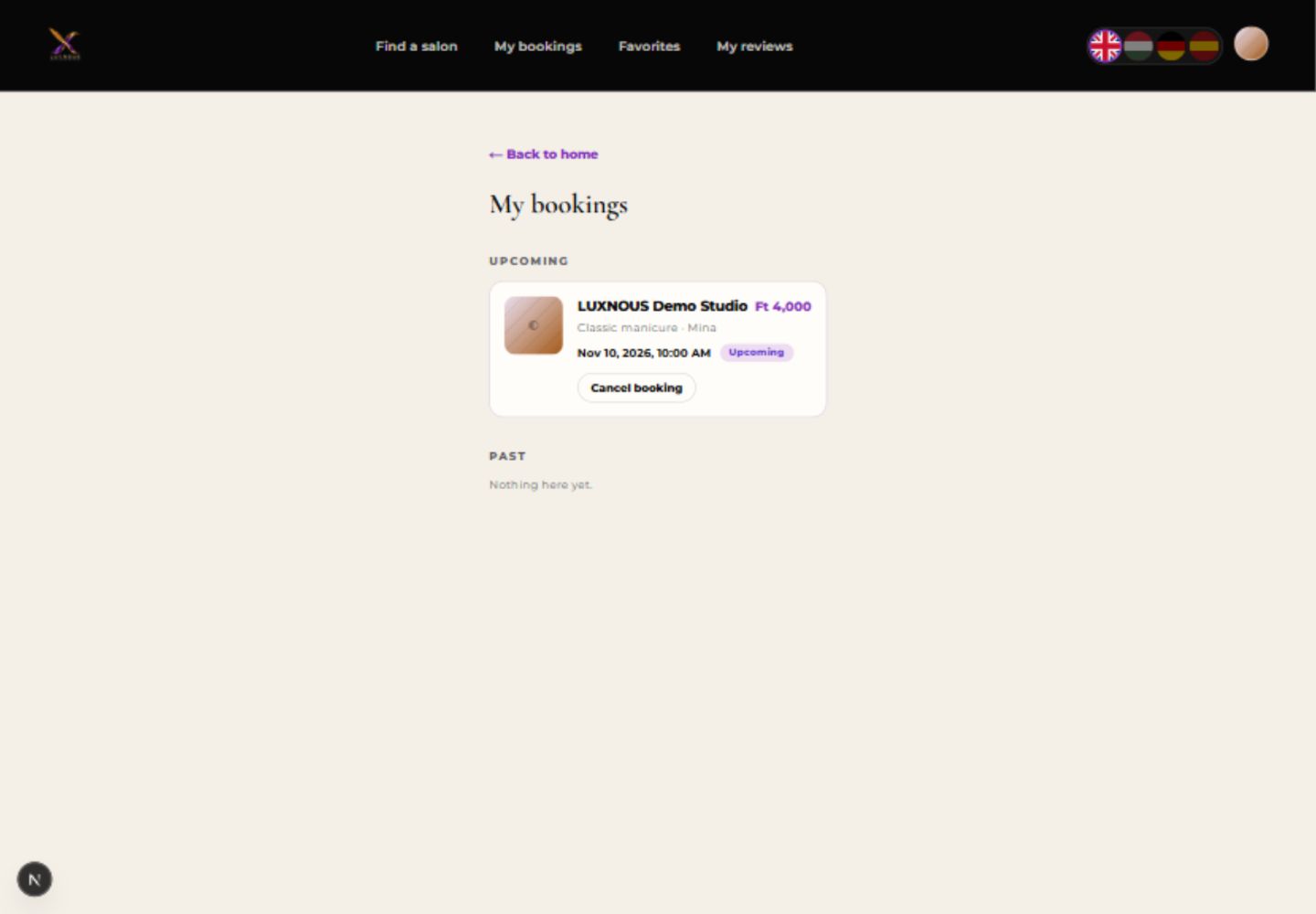
6. Check My bookings
After confirmation, open View my bookings. Find the appointment under Upcoming and check its details.
General questions
Do I pay online for the service?
In this booking flow you pay at the salon. The salon’s LUXNOUS software subscription is separate.
Why can I not see a time?
Availability depends on the selected service, professional, working hours and existing bookings or blocked periods. Try another date or professional.
Where do I find or cancel my booking?
Open My bookings. Upcoming confirmed appointments offer Cancel booking. For a change or a question about the service, contact the salon.
Are the pictures showing real availability?
No. They show a fictional training booking. Check the salon page for current services, prices and available times.